> ## Documentation Index
> Fetch the complete documentation index at: https://docs.heroncopier.com/llms.txt
> Use this file to discover all available pages before exploring further.
# How Does Heron Copier Work?
This page contains technical details about how Heron Copier works. If you are not interested in the technical details, you can skip this page and go ahead to the [Quick Start Guide](/setup/setup).
While it is not necessary to understand how the copier works to use it, it is recommended to read this page so you can better understand how to use (and configure) the copier, especially if your [use cases are complex](/usecases).
The copier is versatile, but it can't *"automagically"* do everything for you. By understanding how it works, you can configure it accordingly.
## Basic Principles
Heron Copier is a [versatile](/usecases) trade copier that can be used in various scenarios.
You can use the copier for **as many master and slave accounts as your VPS/PC can handle**. There is **no limitation**.
```mermaid theme={null}
flowchart LR
A1[Master Account] -->|Binds to| B1[Port xxxxx] --> |Sends instructions to| C1[Slave Account]
C1 -->|Listens to| B1
```
The copier works by sending trade instructions from the master account to the slave account(s) via **TCP protocol**.
It uses a **"port"** to establish a connection between the master and slave accounts.
As an example, let's have a look at the default IP address and port number used by the copier @ `tcp://127.0.0.1:51124`.
```mermaid theme={null}
flowchart TD
A1["tcp://127.0.0.1:51124"] --> B1[Protocol]
A1 --> B2[IP Address]
A1 --> B3[Delimiter]
A1 --> B4[Port Number]
B1[tcp://] --> C1[Protocol]
B2[127.0.0.1] --> C2[IP Address]
B3[:] --> C3[Delimiter]
B4[51124] --> C4[Port Number]
style B2 fill:purple,stroke:#333,stroke-width:2px
style C2 fill:purple,stroke:#333,stroke-width:2px
style B4 fill:green,stroke:#333,stroke-width:2px
style C4 fill:green,stroke:#333,stroke-width:2px
```
The default server address @ `tcp://127.0.0.1:51124` consists of the following components:
* **Protocol**: `tcp://`
* **IP Address**: `127.0.0.1`
* **Delimiter**: `:`
* **Port Number**: `51124`
The **IP Address** `127.0.0.1` is a special IP address that refers to the local machine (i.e. the same VPS/PC where the copier is running).
And the **Port Number** `51124` is the default port number used by the copier.
This means that, by using the default server address, you can already copy trades between accounts running on the same VPS/PC.
## Multiple Master Accounts
What if you want to have **more than 1 master account**? It's easy, just make sure to use a **unique port number** (e.g. tcp\://127.0.0.1:**51124** for the first master account, tcp\://127.0.0.1:**51125** for the second master account, etc.).
```mermaid theme={null}
flowchart LR
A1[Master Account #1] -->|Port 51124| B1[Slave Account #1]
A2[Master Account #2] -->|Port 51125| B2[Slave Account #2]
A3[Master Account #3] -->|Port 51126| B3[Slave Account #3]
```
For example, if you have 3 master accounts like the example above, you can use the following port numbers:
* Master Account #1: tcp\://127.0.0.1:**51124**
* Master Account #2: tcp\://127.0.0.1:**51125**
* Master Account #3: tcp\://127.0.0.1:**51126**
And the slave accounts will listen to their respective master account's port number:
* Slave Account #1: tcp\://127.0.0.1:**51124**
* Slave Account #2: tcp\://127.0.0.1:**51125**
* Slave Account #3: tcp\://127.0.0.1:**51126**
This means that Slave Account #1 will listen to the first master account via port number **51124**, Slave Account #2 will listen to the second master account's port number **51125**, and so on.
Port number is like a **"channel"** that the master and slave accounts use to communicate with each other.
There can only be **one master account per port number**, but you can have **multiple slave accounts per port number**.
## Dashboard Page
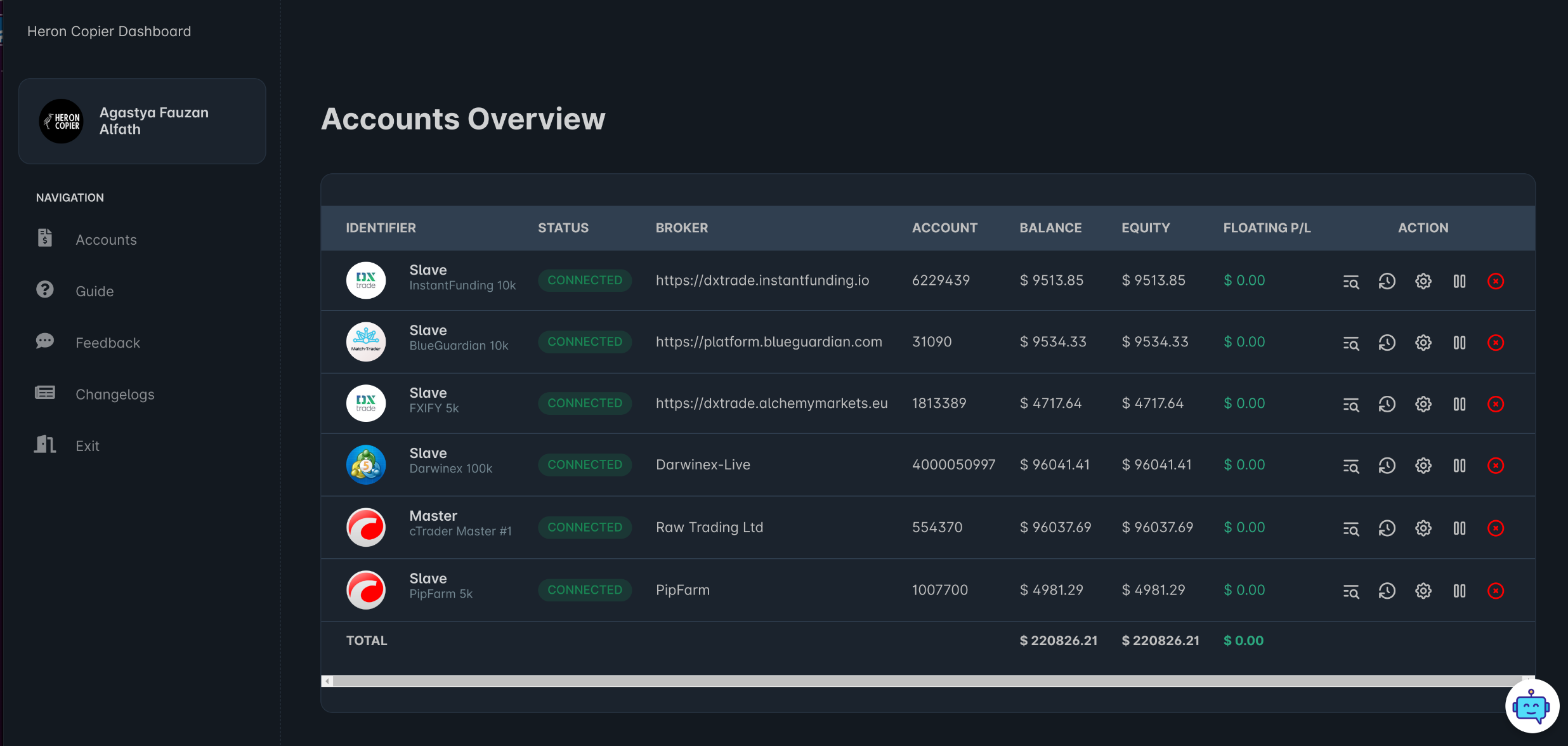 Unlike other local-based trade copiers, Heron Copier provides a centralized [dashboard](/setup/monitoring) where you can see all your accounts at a glance without having to login to your VPS.
The dashboard page is a page hosted on our server that allows you to monitor your accounts in real-time.
All accounts connected to the copier will be displayed on the dashboard, along with their current status, balance, equity, and other relevant information.
You can also see the trade history, open trades, and even close trades directly from the dashboard.
```mermaid theme={null}
sequenceDiagram
User->>Dashboard: I want to close all trades on the selected account.
Note over User,Dashboard: User clicks on the "Kill Switch" button.
Dashboard->>Selected Account: Close all your trades!
Selected Account-->>Dashboard: All trades are closed.
Dashboard-->>User: All trades are closed.
Note over Dashboard,User: User receives a confirmation message.
```
Above is an example of how the dashboard communicates with the connected accounts.
The Heron Copier EAs/apps can communicate both ways with the dashboard. They listen for commands from the dashboard and send updates to the dashboard.
For example, when you click on the **"Kill Switch"** button on the dashboard, the dashboard sends a command to the selected account to close all trades. The selected account then closes all trades and sends a confirmation back to the dashboard. The dashboard then displays a message to the user that all trades are closed.
This enables you, as the user, to manage your connected accounts directly from the dashboard.
## So... Is the local version of Heron Copier really a local-based copier?
Yes, it is. Despite having a centralized dashboard, **the local version of Heron Copier is still a local-based copier**.
All trades made by the copier **will still originate from your VPS/PC's IP address**. The dashboard is just a tool to help you monitor and manage your connected accounts.
Unlike other local-based trade copiers, Heron Copier provides a centralized [dashboard](/setup/monitoring) where you can see all your accounts at a glance without having to login to your VPS.
The dashboard page is a page hosted on our server that allows you to monitor your accounts in real-time.
All accounts connected to the copier will be displayed on the dashboard, along with their current status, balance, equity, and other relevant information.
You can also see the trade history, open trades, and even close trades directly from the dashboard.
```mermaid theme={null}
sequenceDiagram
User->>Dashboard: I want to close all trades on the selected account.
Note over User,Dashboard: User clicks on the "Kill Switch" button.
Dashboard->>Selected Account: Close all your trades!
Selected Account-->>Dashboard: All trades are closed.
Dashboard-->>User: All trades are closed.
Note over Dashboard,User: User receives a confirmation message.
```
Above is an example of how the dashboard communicates with the connected accounts.
The Heron Copier EAs/apps can communicate both ways with the dashboard. They listen for commands from the dashboard and send updates to the dashboard.
For example, when you click on the **"Kill Switch"** button on the dashboard, the dashboard sends a command to the selected account to close all trades. The selected account then closes all trades and sends a confirmation back to the dashboard. The dashboard then displays a message to the user that all trades are closed.
This enables you, as the user, to manage your connected accounts directly from the dashboard.
## So... Is the local version of Heron Copier really a local-based copier?
Yes, it is. Despite having a centralized dashboard, **the local version of Heron Copier is still a local-based copier**.
All trades made by the copier **will still originate from your VPS/PC's IP address**. The dashboard is just a tool to help you monitor and manage your connected accounts.