> ## Documentation Index
> Fetch the complete documentation index at: https://docs.heroncopier.com/llms.txt
> Use this file to discover all available pages before exploring further.
# Installation
After you have installed the VC++ Redistributable as described in the [Pre-requisites](/setup/prerequisites) section, you can proceed to install Heron Copier.
1. Download the zip file from [this link](https://heroncopier.com/download).
2. Extract the downloaded zip file and navigate to the extracted folder.
3. Run the `Heron Copier Connector.exe` installer file and follow the instructions.
4. Run the `Heron Copier Connector` app from the Desktop or from the Start menu.
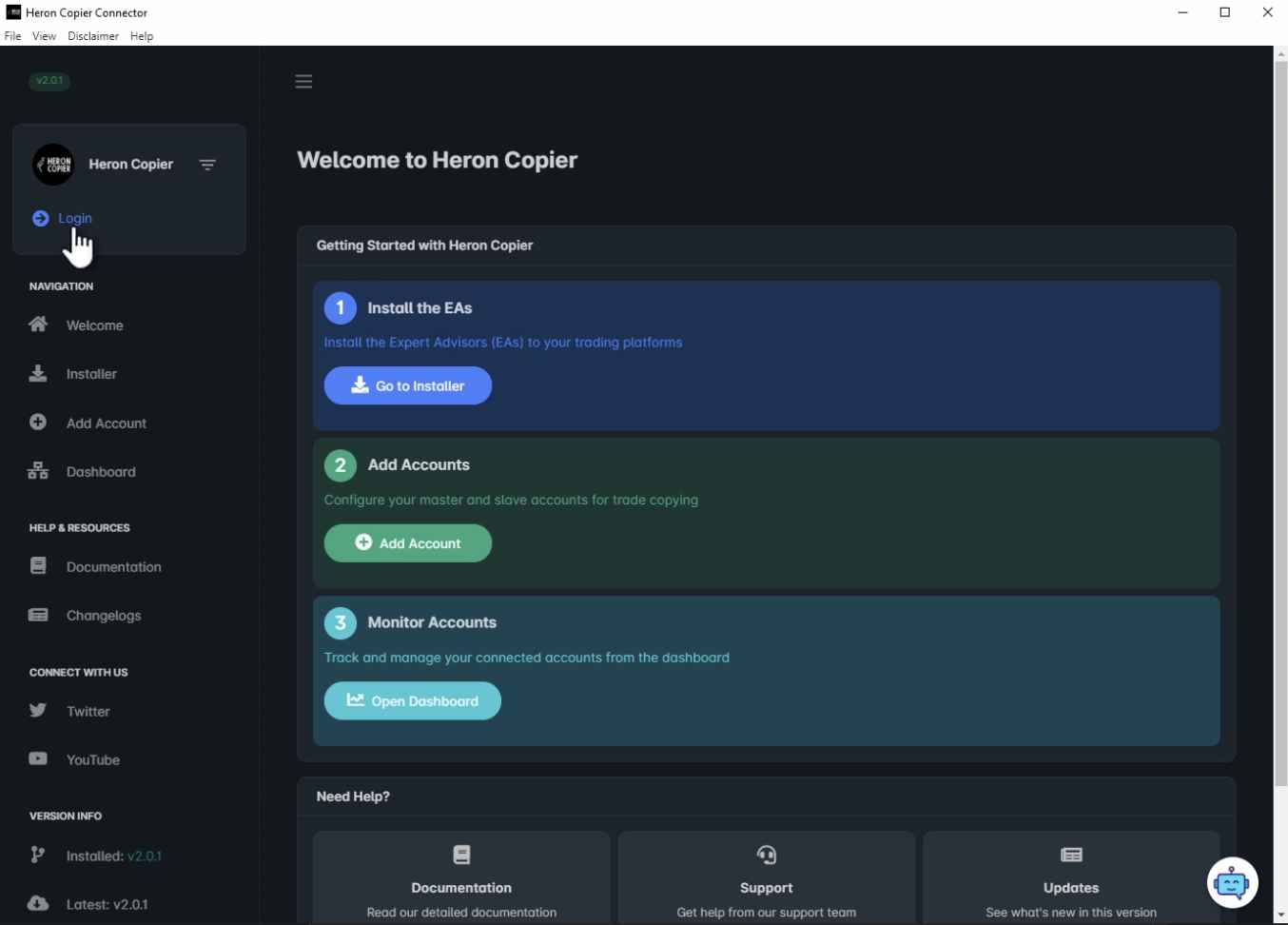 5. Click "Login" and insert your license key.
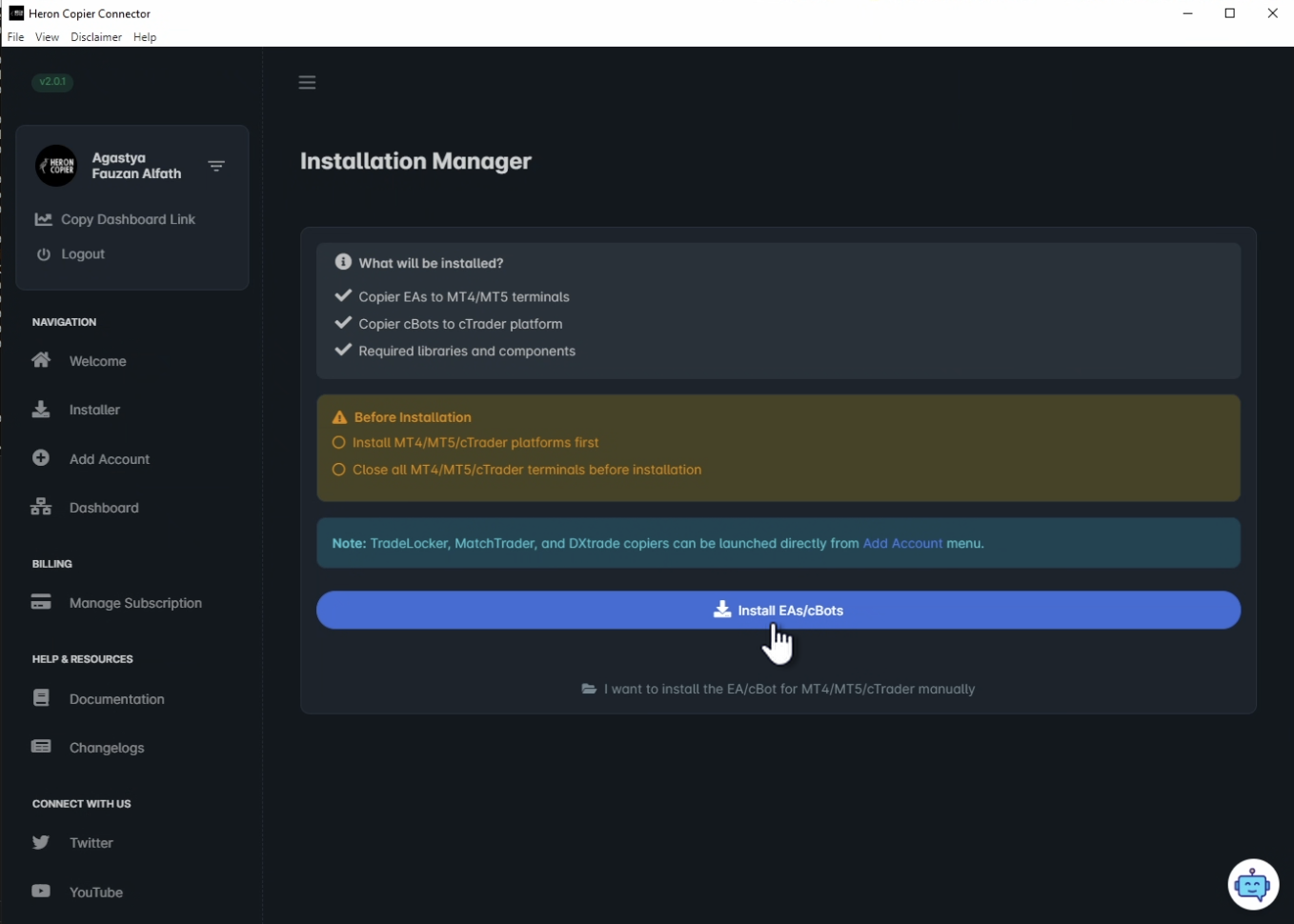 6. In the Heron Copier Connector app, navigate to the **"Installer"** tab after login, and click **"Install"** to install the necessary files to your computer. The Installer tab is in the Connector app, not inside MT4 or MT5.
7. Next, you can start [adding your trading accounts](/setup/settinguptheaccounts) from the Connector app.
## Manual Installation of EAs/cBots
If you want to install the EAs manually, you can do so by following these steps:
1. Open the Heron Copier Connector app, click on the **"Installer"** tab after login, and choose **"I want to install the EAs/cBots manually"**. This Installer tab is not inside MT4 or MT5.
2. A new File Explorer window will appear showing the files needed to be copied.
3. For **MT4/MT5**:
* Copy the entire **"Heron Copier"** folder to the **"MQL4/Experts"** or **"MQL5/Experts"** folder.
* Copy the required DLL files (**libsodium.dll** and **libzmq.dll**) under **"Libraries"** folder to the **"MQL4/Libraries"** or **"MQL5/Libraries"** folder
4. For **cTrader**:
* Simply double-click the **.algo files** to import them to cTrader instance. Make sure to select **"local"** installation when asked by the platform.
5. For **TradeLocker/MatchTrader/DXtrade**:
* There is no manual installation method for all these 3 platforms. Simply click the **"Add Account"** button on the Connector app to launch the copier for **DXtrade**, **TradeLocker**, or **MatchTrader** platforms.
6. In the Heron Copier Connector app, navigate to the **"Installer"** tab after login, and click **"Install"** to install the necessary files to your computer. The Installer tab is in the Connector app, not inside MT4 or MT5.
7. Next, you can start [adding your trading accounts](/setup/settinguptheaccounts) from the Connector app.
## Manual Installation of EAs/cBots
If you want to install the EAs manually, you can do so by following these steps:
1. Open the Heron Copier Connector app, click on the **"Installer"** tab after login, and choose **"I want to install the EAs/cBots manually"**. This Installer tab is not inside MT4 or MT5.
2. A new File Explorer window will appear showing the files needed to be copied.
3. For **MT4/MT5**:
* Copy the entire **"Heron Copier"** folder to the **"MQL4/Experts"** or **"MQL5/Experts"** folder.
* Copy the required DLL files (**libsodium.dll** and **libzmq.dll**) under **"Libraries"** folder to the **"MQL4/Libraries"** or **"MQL5/Libraries"** folder
4. For **cTrader**:
* Simply double-click the **.algo files** to import them to cTrader instance. Make sure to select **"local"** installation when asked by the platform.
5. For **TradeLocker/MatchTrader/DXtrade**:
* There is no manual installation method for all these 3 platforms. Simply click the **"Add Account"** button on the Connector app to launch the copier for **DXtrade**, **TradeLocker**, or **MatchTrader** platforms.